
📘 MsgPilot Enterprise
Secure Android Installation Guide (Outside Google Play Store)
🌟 Why This Guide Exists (Please Read First)
MsgPilot Enterprise is a business and enterprise version of MsgPilot. For flexibility, privacy, and enterprise licensing, it is distributed directly from our official website, not from Google Play Store.
Because of this, Android will ask you to confirm a few security permissions before installation.
👉 This guide exists to:
- Explain why Android shows these messages
- Show you exactly what to tap
- Keep your phone safe before, during, and after installation
- Help users on different phone brands
✅ These steps are normal worldwide for enterprise apps used by companies, banks, and professional tools.
Official website: msgpilot.khtechgroup.com
🔐 Important Safety Note
You are installing MsgPilot Enterprise only from our official website. Never install the app from unknown links, WhatsApp messages, or third-party sites.
🟢 PART 1 — Downloading MsgPilot Enterprise
Step 1 — Download the App
- Open your browser (Chrome / Samsung Internet).
- Visit: msgpilot.khtechgroup.com
- Tap Download MsgPilot Enterprise.
- Wait until the download finishes.
📌 You may see a message like:
“This type of file may harm your device”
✅ This is a standard Android warning for apps outside Play Store — it does not mean the app is unsafe.
Tap Download anyway.
🟢 PART 2 — Google Play Protect (Very Important)
Google Play Protect sometimes blocks enterprise apps by default, even if they are safe.
You need to temporarily turn it off, install the app, then turn it back on.
Step 2 — Disable Play Protect (Temporary)
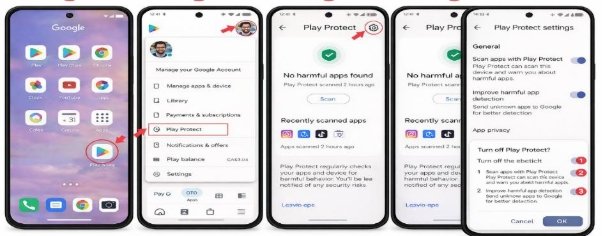
How to remove Google Play Protect in the Play Store?
- Open the Google Play Store app.
- Tap your profile icon at the top right.
- Tap “Play Protect.”
- Open “Settings.”
- Turn off “Scan apps with Play Protect.”
How to Disable Google Play Protect on Android 14
- Open the Play Store app.
- Tap your profile icon at the top right of the screen.
- Select “Play Protect” from the menu.
- Tap the Settings icon.
- Turn off both available options:
a. Tap on “High priority.”
b. Select “Turn OFF.”
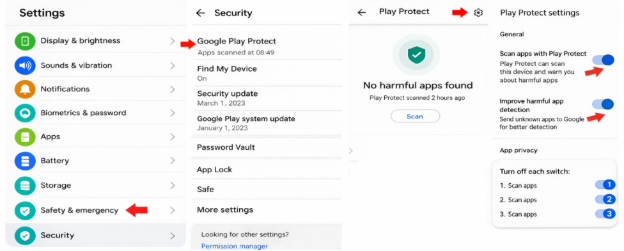
How to disable Google Play Protect on Android 13?
- Open Settings on your device.
- Go to the Security section.
- Tap on Google Play Protect.
- Tap the Settings icon in the top-right corner.
- Turn off Scan apps with Play Protect.
🟢 PART 3 — Allow Installation from This Source
Step 3 — Allow the Browser to Install Apps
Android devices include a built-in security feature that prevents installing apps from outside the Play Store.
✅ This permission applies only to your browser and can be disabled later.
✅ If you start the installation and you got the message:
“Your phone is not allowed to install apps from this source”
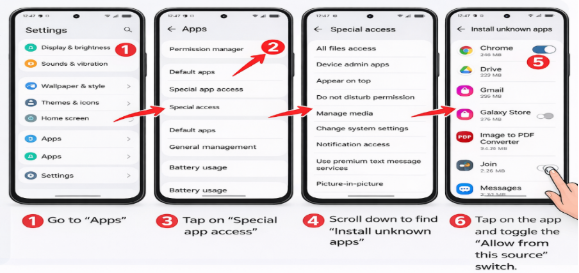
How to install Unknown Sources applications in Android 13?
- Open Settings.
- Go to Apps.
- Tap on Special app access.
- Scroll down and select Install unknown apps.
- You will see a list of apps that are allowed to install content on your device.
- Tap the app you want and turn on Allow from this source.
🟢 PART 4 — Installation Complete
Step 4 — Open MsgPilot Enterprise
- Wait for installation to finish.
- Tap Open.
- MsgPilot Enterprise is now ready.
📱 PART 5 — Phone Brand–Specific Notes
🔵 Samsung (One UI)
Settings → Security & Privacy → Install unknown apps → Browser → Allow from this source
🟠 Xiaomi / Redmi / Poco (MIUI / HyperOS)
Settings → Privacy Protection → Special permissions → Install unknown apps → Browser → Allow
⚠️ Xiaomi may show extra warnings — this is normal.
🟢 OPPO / Realme (ColorOS)
Settings → Security → Install unknown apps → Browser → Allow
🔵 Huawei
Settings → Security → Install unknown apps → Browser → Allow
🟣 Vivo
Settings → Security & Privacy → Install unknown apps → Browser → Allow
🔒 PART 6 — VERY IMPORTANT: Return Your Phone to Safe Mode
After installation, we strongly recommend restoring all protections.
Step 5 — Re-Enable Google Play Protect
- Open Google Play Store
- Tap profile photo → Play Protect
- Tap ⚙️ Settings
- Turn ON:
- Scan apps with Play Protect
- Improve harmful app detection
Step 6 — Disable “Install from This Source”
- Open Settings
- Go to Install unknown apps
- Select your browser
- Turn OFF “Allow from this source”
✅ Your phone is now fully protected again.
🧠 Common Questions
Is this dangerous?
❌ No. These steps are standard for enterprise apps.
Will this affect my data?
❌ No. MsgPilot does not access data without permission.
Do I need to repeat this later?
❌ No. Only for first installation.
Can I uninstall anytime?
✅ Yes, like any normal app.
🆘 Need Help? We’re Here for You
- 🌐 Website: msgpilot.khtechgroup.com
- 📧 Email: support@msgpilot.khtechgroup.com
- 💬 WhatsApp: +201014683536 (fastest support)
We guide you step by step — you’re not alone.